
It happens faster than most engineers would like to admit.
A developer adds an API key, password, SSH private key, cloud credential, or other secret to a configuration file. The file gets committed and pushed to GitHub. A few minutes later someone notices the mistake, removes the secret, commits the change, and pushes again.
Problem solved? Not quite.
Git is designed to preserve history. Removing a secret from the current version of a file does not necessarily remove it from previous commits. Anyone with access to that history may still be able to retrieve the original value.
More importantly, once a credential has been published to a remote repository, the safest assumption is that it has been exposed.
The response therefore needs to address two separate problems:
- The credential itself has been compromised.
- Copies of the credential may remain in Git history.
The order matters.
1. Revoke or Rotate the Secret First
Your first reaction might be to start rewriting Git history.
Don’t.
Revoke or rotate the exposed credential first.
GitHub’s guidance for removing sensitive data specifically recommends revoking or rotating an exposed password, token, or credential as the first step. Once revoked or rotated, the exposed value can no longer be used for access. [docs.github.com]
Depending on what was exposed, that could mean:
- Revoke and regenerate an API token.
- Delete and re-create an SSH deploy key.
- Rotate a cloud access key.
- Change a password.
- Rotate an application or database credential.
- Replace certificates or private keys where appropriate.
Don’t wait until you’ve cleaned the repository.
Think about it this way:
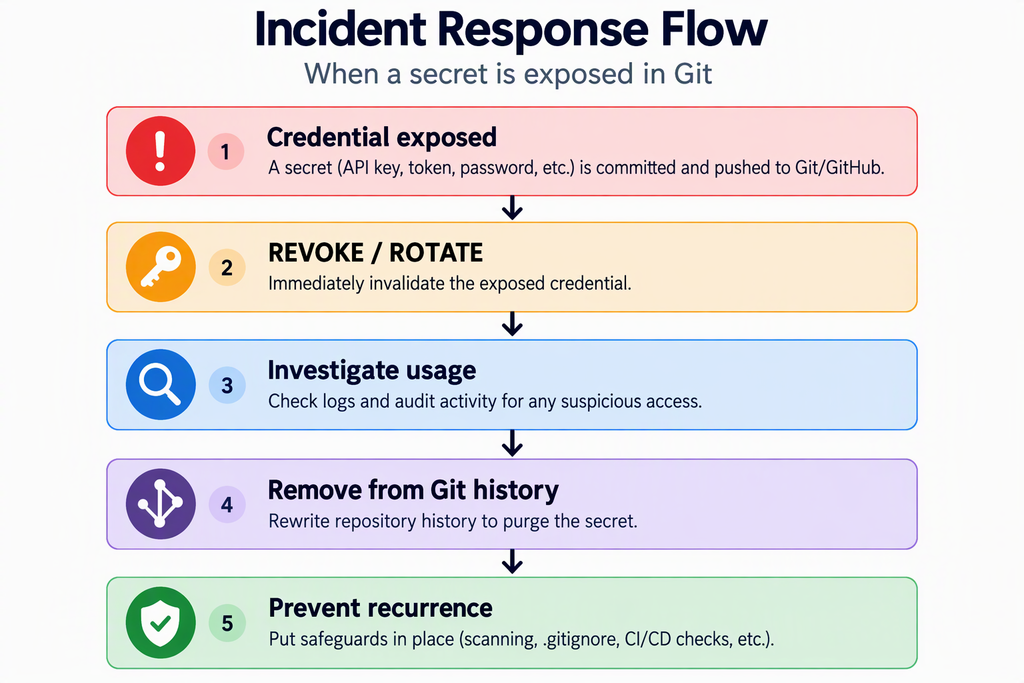
History cleanup reduces continued exposure. Rotation removes the value of the exposed credential.
2. Determine What Was Exposed
Before rewriting anything, determine the extent of the problem.
Start by identifying:
- What secret was exposed?
- What permissions did it have?
- Which repository contained it?
- Was the repository public or private?
- Which commit introduced it?
- Which branches and tags may contain it?
- Was it copied into multiple files?
If you know the filename:
git log --all -- path/to/file
To see the actual changes:
git log -p --all -- path/to/file
For example:
git log -p --all -- config/settings.py
If you know a variable name associated with the secret:
git log -p -S'API_KEY' --all
This can help identify when the value was introduced and when it was removed.
3. Assume Removing the Latest Copy Isn’t Enough
Suppose a developer accidentally commits:
API_KEY = "<secret>"
They realize the mistake and replace it with:
API_KEY = os.environ["API_KEY"]
The current file looks safe.
But:
git log -p
may still expose the previous value.
That’s an important distinction:
Working tree clean != Git history clean
Simply committing a deletion doesn’t erase what previous commits contained.
4. Remove the Secret From Git History
If the entire file should never have been committed, one option is rewriting the repository with git filter-repo.
For example, to purge:
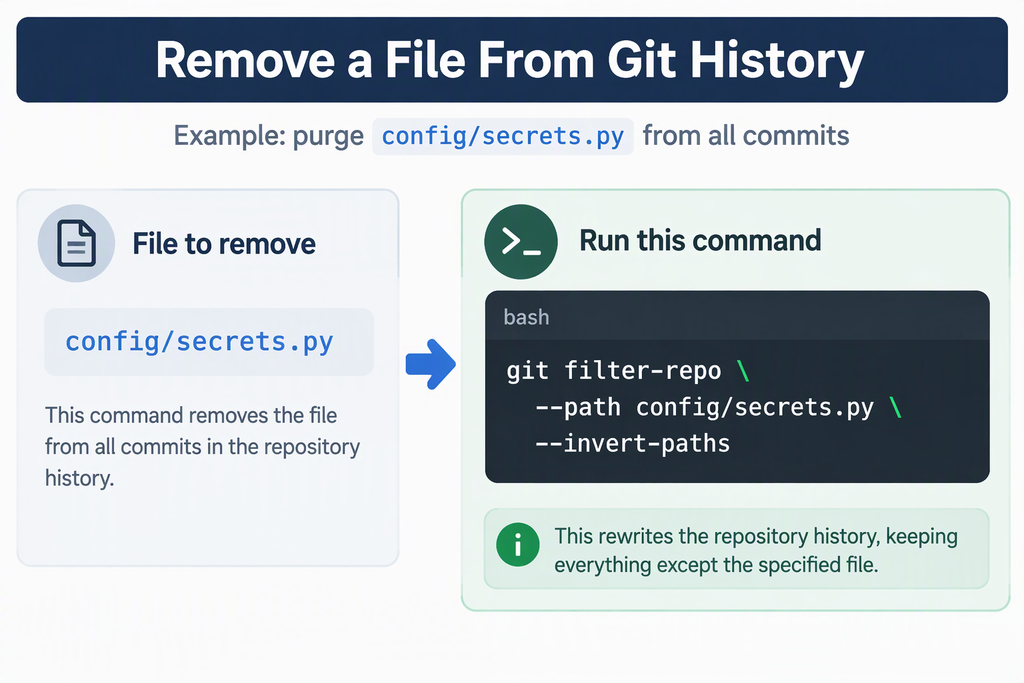
The idea is:
Rewrite the repository while keeping everything except that path.
GitHub’s sensitive-data remediation documentation discusses using git-filter-repo to purge sensitive files from repository history. It also warns that rewriting history has significant side effects and requires coordination with other users of the repository. [docs.github.com]
If only a specific secret needs removing while the file itself must remain, use an appropriate content-replacement approach rather than deleting the entire file’s history.
5. Understand That History Rewriting Is Destructive
This step deserves respect.
Rewriting Git history creates new commits, which means commit IDs change.
GitHub specifically warns that rewriting history changes the hashes of affected commits and subsequent commits and can impact tooling that depends on those hashes. [docs.github.com]
Before rewriting a shared repository:
- Coordinate with everyone working from it.
- Pause changes if practical.
- Preserve anything that cannot be recreated.
- Understand what branches and tags are affected.
- Plan how developers will synchronize afterward.
This isn’t just repository housekeeping. You’re changing the project’s history.
6. Update the Remote Repository
Cleaning your local clone doesn’t automatically clean the hosted repository. After verification, the rewritten refs need to replace the affected remote history following the repository’s cleanup procedure. Repository protections can complicate this. GitHub notes that branch protections preventing force pushes may need to be handled during sensitive-data removal. [docs.github.com] This is another reason the cleanup should be planned rather than treated like an ordinary push.
7. Don’t Let an Old Clone Put the Secret Back
This is one of the most easily overlooked parts of the incident.
Imagine three developers have clones:
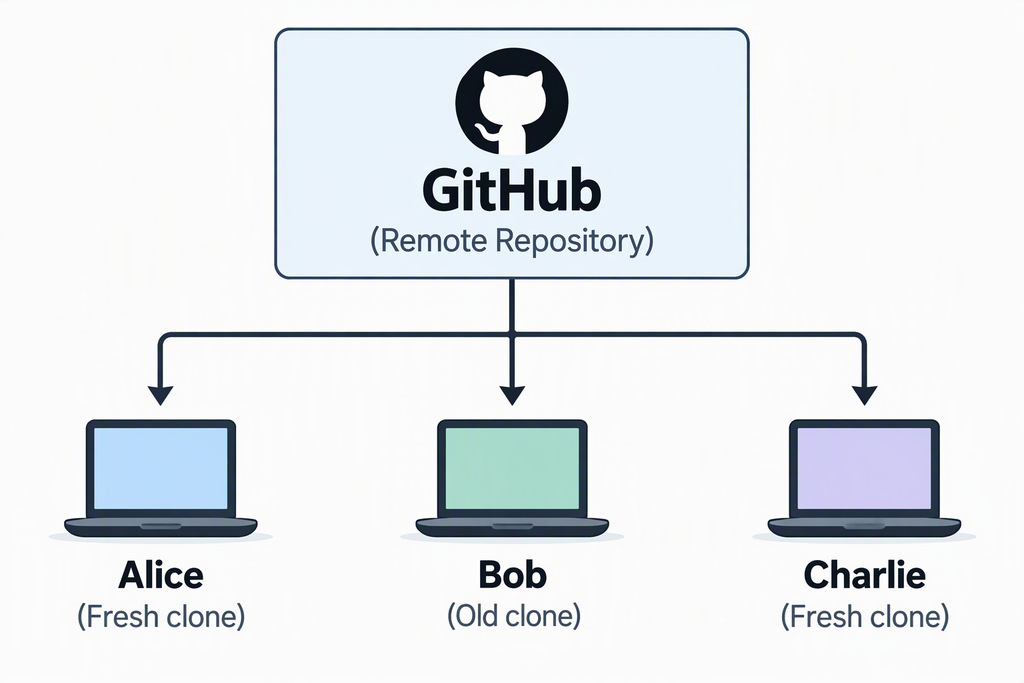
You carefully rewrite the remote history.
Bob still has the old history containing the credential. If the old history gets pushed back into the cleaned repository, you can potentially undo your cleanup. GitHub explicitly calls out this risk of recontamination. Developers with clones predating the rewrite need to discard and reclone or carefully clean their existing clones. [docs.github.com]
In many situations, the least confusing instruction is simply:
Back up any unpushed work and make a clean clone of the sanitized repository.
8. Investigate Whether the Credential Was Used
Rotating the secret stops future use of that credential, but you should still determine whether it was abused before rotation. Depending on the credential, review the relevant provider’s available audit and access records for unexpected activity. For a cloud credential, you might be interested in activity associated with the affected identity. For an application token, investigate actions performed using that token. For an SSH deploy key, examine repository and system access associated with that credential.
The question you’re trying to answer is:
“What could this credential access, and was that access used unexpectedly?”
Treat the Git leak as the starting point of the investigation, not necessarily its entire scope.
9. Move Secrets Out of Source Code
After the incident is contained, fix the design that allowed the secret to end up in Git.
Instead of:
DB_PASSWORD = "SuperSecretPassword"
use externally supplied configuration:
import os
DB_PASSWORD = os.environ["DB_PASSWORD"]
The repository stores the application’s expectation that a secret exists. It doesn’t store the secret itself. Depending on the environment, secrets might ultimately come from a dedicated secrets-management system, CI/CD secret store, protected environment configuration, or another appropriate credential-management mechanism.
A useful rule is:
Git should contain instructions for obtaining secrets, not the secrets themselves.
10. Use .gitignore, But Don’t Stop There
Local development files containing credentials should generally not be tracked.
For example:
.ignore.env
.env.*
*.pem
*.key
secrets/
You might then provide a safe template:
.env.example
containing:
DB_HOST=
DB_USERNAME=
DB_PASSWORD=
API_KEY=
That documents the application’s configuration requirements without publishing real credentials. But .gitignore alone is not a security control. It primarily reduces the chance of accidentally adding known local files. It doesn’t prevent someone from pasting a secret directly into source code.
Defense in depth is better.
11. Scan Before the Commit
Add secret detection to the development workflow.
The ideal progression is:
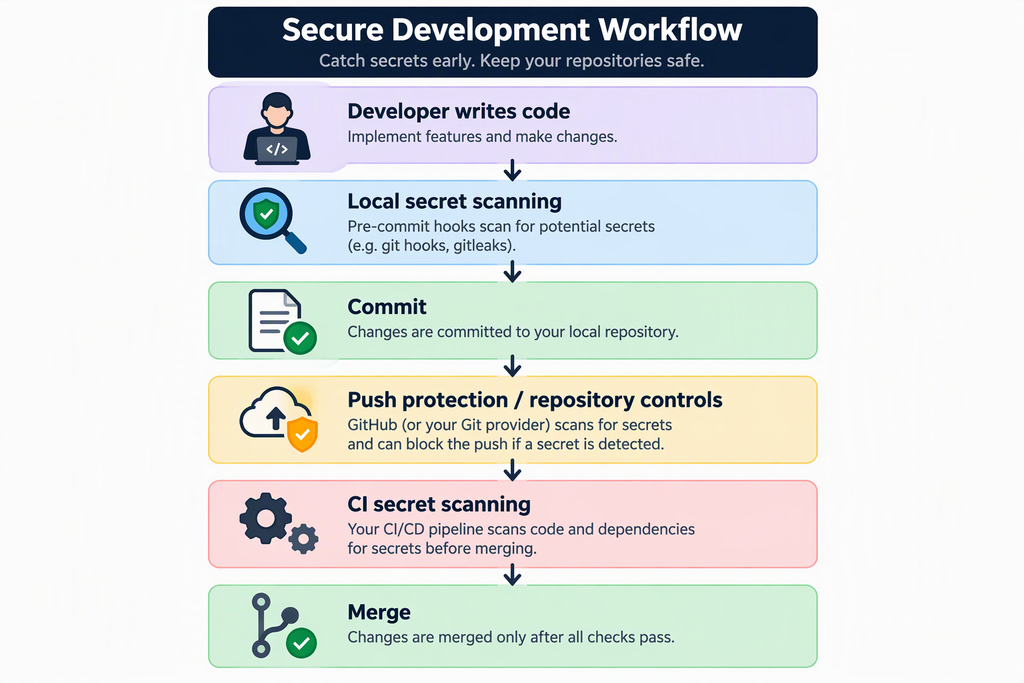
The earlier you detect the problem, the cheaper it is to fix. A locally detected credential might never leave the developer’s workstation. A secret detected after a public push has become an incident.
12. Scan During CI/CD Too
Local controls can be skipped, misconfigured, or bypassed.
Add another control to the CI/CD pipeline so commits and pull requests are evaluated before changes make their way toward production.
This gives you independent layers:
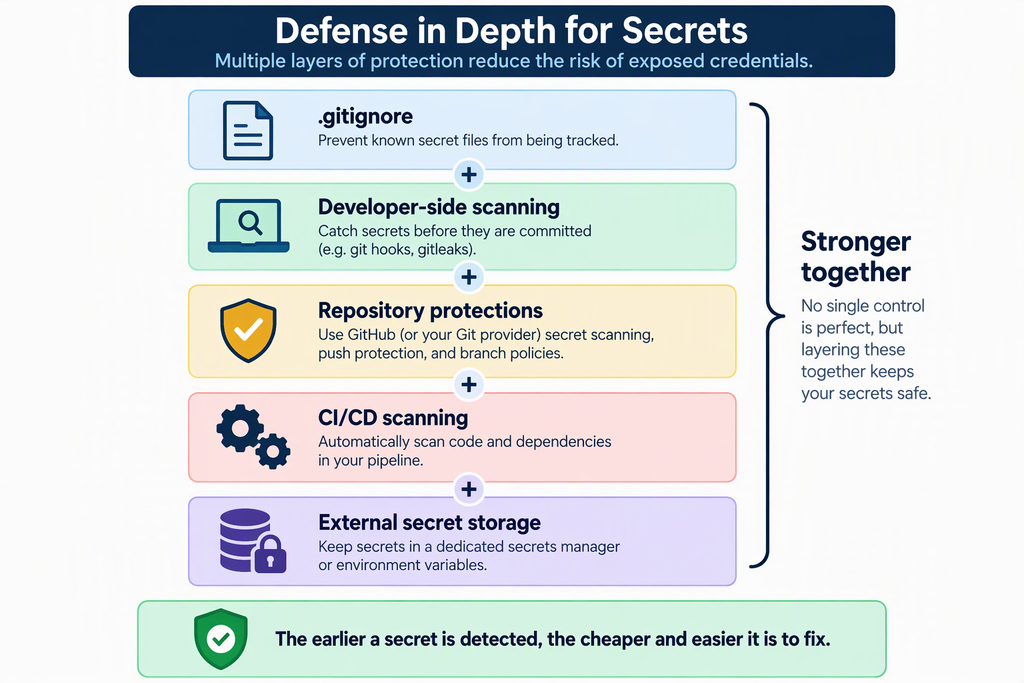
No individual control has to be perfect if multiple controls stand between a mistake and an actual exposure.
13. Don’t Forget Repository-Level Protections
If you’re using GitHub, investigate the security controls available for your repository and organization. The goal is to detect secrets at multiple points rather than relying entirely on engineers remembering not to commit them.
Human discipline is valuable. Automated enforcement is more reliable.
A Practical Incident Checklist
When a secret makes it into Git:
Containment
[ ] Revoke or rotate the exposed credential
[ ] Determine the permissions associated with it
[ ] Replace dependencies using the old credential
[ ] Confirm the old credential is no longer valid
Investigation
[ ] Identify the commit that introduced the secret
[ ] Determine affected branches/tags
[ ] Determine whether the repository was publicly accessible
[ ] Review relevant access/audit information
Repository cleanup
[ ] Remove the secret from the current code
[ ] Rewrite history if necessary
[ ] Verify affected history has been sanitized
[ ] Update the remote repository
[ ] Coordinate cleanup/re-cloning with collaborators
Prevention
[ ] Move secrets outside source code
[ ] Update .gitignore
[ ] Provide safe example configuration files
[ ] Add local secret scanning
[ ] Add CI/CD secret scanning
[ ] Enable appropriate repository security controls
[ ] Document the response procedure
The Most Important Lesson
The biggest mistake after exposing a credential isn’t necessarily committing it in the first place.
It’s treating this:
git rm secrets.txt
git commit
git push
as though the credential never existed.
Git remembers.
And once a secret has been pushed somewhere other people or systems could retrieve it, deleting evidence of the secret doesn’t make that credential safe again.
The correct sequence is:
revoke, investigate, clean, verify, and prevent.
That’s the difference between fixing a bad commit and responding to a security incident.
Discover more from The Root User
Subscribe to get the latest posts sent to your email.